
Essay · 2 October 2026 · Adrian Verdan
Build Your First AI Tool Around One Boring Task

This article appears here in the English original. The fully revised Medium version is prepared as a draft.
A practical way to start: describe the friction, ask better questions, build something small, and check it yourself. With a few mistakes from my own projects.
Drafted with AI assistance; however, every number, failure, and opinion in here is mine
There is probably a small task you have done so often that you no longer count it as work. Copying amounts into a spreadsheet. Turning scattered notes into a shopping list. Finding the same information in the same documents, again, because you never made a place for it.
That is a useful place to start with AI. You already know the task. You can recognise a result that helps, and you can spot the maddening little thing the machine has misunderstood. A promise to “learn AI” gives you much less to work with.
I run a one-person business and use AI to build software and prepare documents. A small program helped prepare this article: it takes one text and formats copies for the website and Medium. The first Medium paste dropped the pictures. I could spot the gap on the page, then repair the import.
For a first experiment, pick a job that fits on a scrap of paper: record an expense, see the total, get the data back out. The expense log below is an exercise. Substitute an irritation you can judge from your own life.
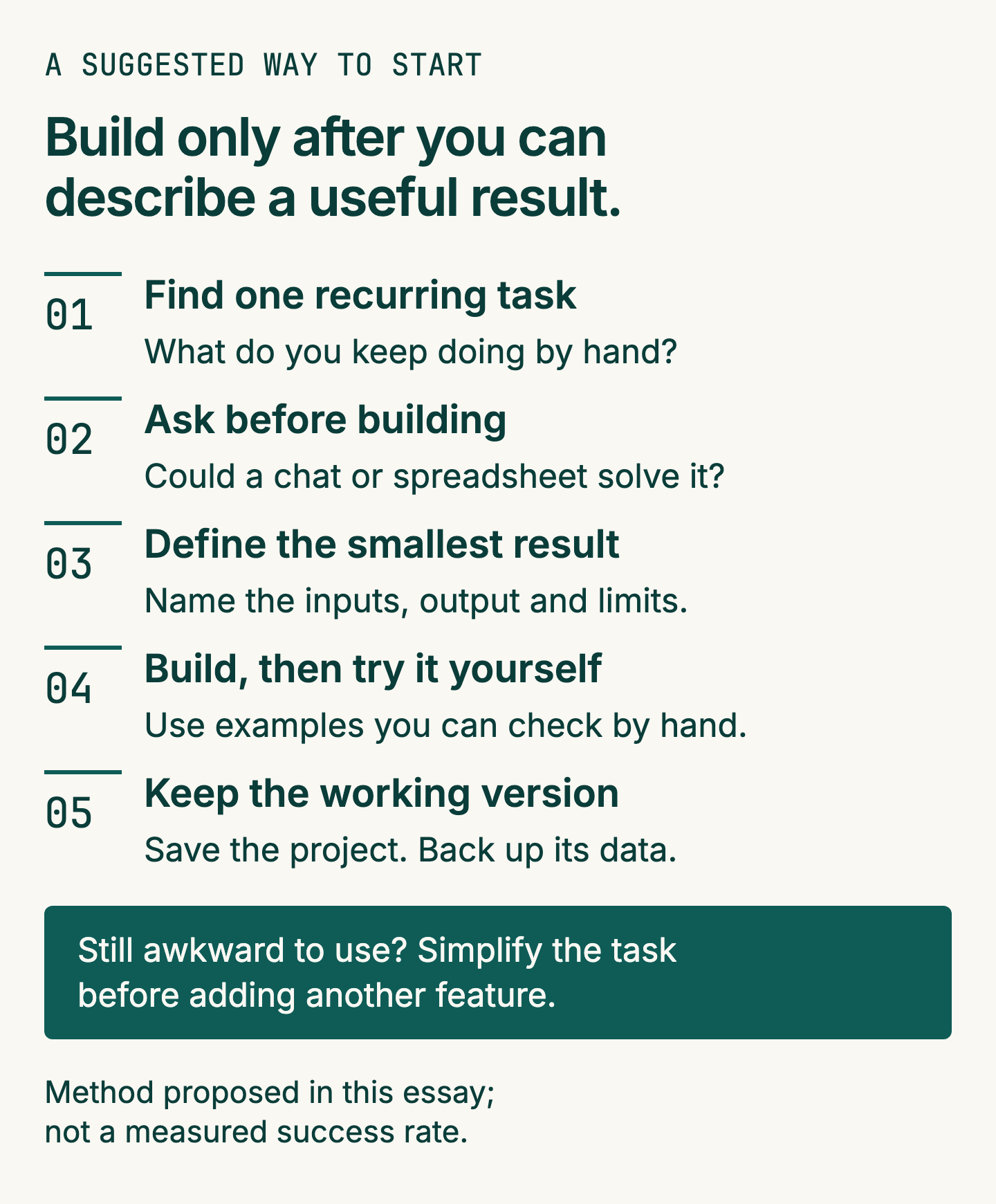
Tap to enlarge.
Find the part that keeps wasting your time
Recording an amount, date and category gives you a screen to aim at, and a fair question to ask before building: could the spreadsheet do this already?
Very possibly. A sheet you can reuse, a way to show only this month, or a formula that adds the amounts for you may be the whole solution. Ask the AI to explain that option first, because owning a new app also means owning its mistakes and keeping track of where its data went.
Here is a first step for today, in the AI chat you already have:
I keep a list of personal expenses, but entering them feels fiddly.
I want to see totals by month and category.
Ask me up to five questions about how I do this now.
Then compare a simpler spreadsheet with a small custom tool.
Explain the extra work each would create. Do not build anything yet.
Replace the expense problem with your own. A normal AI conversation can help you find missing information, turn rough notes into a checklist, or challenge a plan before it becomes software. You can get a useful result at this stage and stop.
Suppose you answer that you only use one computer, have no need to share the list, and keep forgetting which spreadsheet column wants which entry. A small form might help. If you need several people to enter expenses from different devices, this example is already the wrong size.
Choose the smaller problem for a first attempt. There is enough to learn in making an Add button do exactly what it says.
Let the AI ask before it builds
The machine can produce an impressive answer to an incomplete request. That is one of its more inconvenient talents. An expense log leaves it to guess the currency, the date format, whether entries should survive closing the browser, and how you want to get your data back out as a file.
In a test run on 29 September 2026, Claude, the AI assistant I use, was given a request for an expense log that runs inside a web browser. It asked which currency to use and suggested euros, despite the request being in English. I wanted dollars in that run. A small correction in a conversation was much cheaper than discovering the assumption in every label and calculation later.
Answer questions using ordinary facts: “English labels, dollars, dates displayed month/day/year, one computer, and Excel for the exported file.” When a choice is unfamiliar, ask what it changes. You can say that losing the list when you close the window would make the tool useless without understanding how its storage works.
Then ask for a short plan in plain language. It should say what will appear on screen, where entries will be stored, how you will open the tool, and how you can recover your data. A useful plan lets you describe the finished screen back to the AI; unfamiliar names without explanations are a reason to ask again.
A plan can reveal a mismatch, such as setting up a server: a separate running program that receives requests, which this exercise has no job for. Ask about additional software and paid services before agreeing to either.
Give the first version a small job
The single-file route below is a proposed exercise; I have not tested its download-and-double-click steps.
HTML is the file format for a web page; a file ending in .html can be opened in a browser. Try this request in your current chat: “Can you make a page with working buttons here, and give me a complete HTML file to download? Show me how to open it, one click at a time.”
One concrete route is Claude’s file creation feature. Its official instructions, checked on 2 October 2026, list it on the Free plan as well as paid plans and include HTML apps. Ask it to give you the complete expenses.html file to download. A preview inside the conversation is useful for trying the buttons, but ask for the downloadable file too: the preview and a file on your computer are different things. Try that available free route before considering a subscription upgrade.
If your chat cannot supply a working file, stop at the simpler spreadsheet or checklist you discussed. That is already a useful result; this exercise does not require buying a new tool.
CSV is a plain-text table format that a spreadsheet can open. It gives the entries a route out of the app. My earlier test used a small folder of app files; the request below asks for one file to make opening it easier. It is a proposed version for you to try.
Code and functions are the instructions that make buttons and calculations work.
Build a small personal expense log as one complete HTML file.
Include all the page code and functions in the file, with no extra downloads.
Store entered expenses separately in this browser; explain that location.
I need date, amount, category and an optional note for each entry.
Let me remove an entry.
Show totals by month and category. Use dollars and English labels.
Show dates as month/day/year; use year-month-day in exported files.
Keep entries when I close and reopen it on this computer.
Add CSV export I can open in Excel.

No sign-in, server, bank connection or external services.
Use invented data while building and testing.
Explain how to open it and where the data lives.
Run checks on the calculations and export. Show the actual results.
Tell me what you could not check. Ask before adding anything else.
Expect a visible result: a form you can fill in, an Add button, a list of entries, a total, and an export you can download. A long description of how the app would work does not give you any of those.
Download the complete file, put it in a new folder and double-click it. It should open as a page in your browser. Keep a copy of each downloaded file before asking for a replacement. If it opens as text or the buttons do nothing, report that exact result and ask the chat to fix the file or explain the opening steps.
Keep using the same browser and opening method for this exercise. Private browsing (a window that does not keep browsing data), clearing browser data or moving the file can affect saved entries; whether a directly opened file remembers entries depends on the browser. The reopening check below lets you find out on your computer. If a repair requires extra software, have the chat explain why. The first lesson does not have to include repairing your computer.
Make it earn your trust on two entries
Before typing anything, write down the expected result. Use two invented expenses, both dated 2 October 2026: groceries of $3.50 with the note “Bread, fresh”, and leisure of $12.50 with the note “Cinema”. You should see Groceries: $3.50; Leisure: $12.50; total: $16.00.
Enter both. Then reload the page, or close and reopen it as instructed. The two entries and the $16.00 total should still be there. Try an invalid amount such as abc; the tool should explain the problem and leave the total unchanged.
Export the list and open it in your spreadsheet. “Bread, fresh” should occupy one note cell. The amount should remain 3.50 in the amount column. If everything lands in one column, tell the AI which spreadsheet you use and whether it expects decimals such as 3.50 or 3,50.
These checks are deliberately small. You know the answers without consulting the machine that built the app. If it cannot preserve two entries and add them correctly, a more elegant overview screen will not help.
I ran those two entries through the archived September app again on 2 October 2026. After reloading, it still showed both records and $16.00. That demonstration used an extra program on my computer to serve the page to the browser; it did not test opening a single file by double-clicking. Your downloaded version has to pass its own reopening check. The screenshot shows a test with invented entries, not someone’s daily spending.
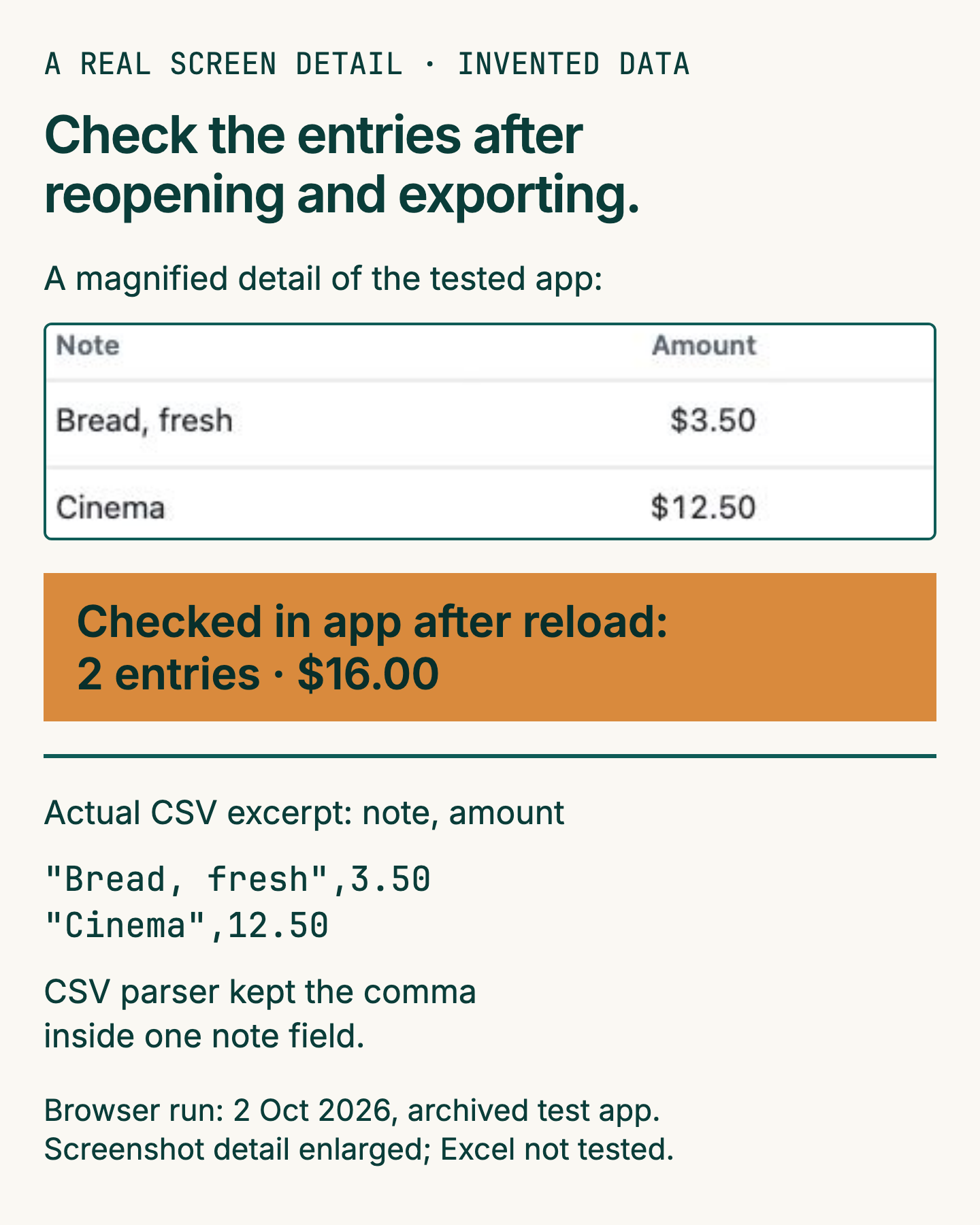
Tap to enlarge.
That comma earned its place in the example. During the 29 September test, I deliberately broke the export so that “Bread, fresh” split across columns. I asked for an automated check, a small program that compares a result with an expected answer, before the repair. In the new two-entry demonstration, the repaired export code produces:
Date,Category,Note,Amount (USD)
2026-10-02,"Groceries","Bread, fresh",3.50
2026-10-02,"Leisure","Cinema",12.50
USD in the heading means US dollars. The quotation marks keep the comma inside the note. You do not need to write the program to check whether the note survives as one cell.
Ask the AI to test its work, then try the result as the person who has to live with it. For a wrong total, report the inputs and the expected number; for a broken button, describe what you clicked and what happened. “Make it better” leaves a remarkable amount of room for new colours.
Change one thing, then keep the version that works
Save a recoverable version before asking for the first revision. Copy the complete working expenses.html into a separate folder before replacing it with a revision; reopening that copy gets you the old app back. Give the folder a recognisable name, such as expense-log-working-2-october, and keep it until you have checked the replacement.
I had a pointed reminder on 28 September 2026: a small program I had written opened a document for writing before reading it, and emptied the file. I had no older saved file versions to restore, so the text had to be rewritten from the draft and recorded changes. The file was teaching people how to build safely. Its own recovery arrangements were less instructive.
The app file and the saved expenses are different. Keeping yesterday’s app file need not keep yesterday’s entries; copying the file need not give you an empty list either. The next request adds a data backup and a separate Practice workspace: a list for trying recovery without changing your normal entries. The backup format belongs to this app; a spreadsheet CSV is not automatically a file the Restore button can use.
expense-backup.json will be this app’s recovery file. Ask for this one change while the normal list still contains your two October entries:
Keep my existing two entries and the current form and CSV export working.
Add a backup download called expense-backup.json and Restore for that format.
Add a clearly labelled Practice workspace that starts with zero entries,
keeps normal entries untouched, and lets me test restoring the backup.
Explain how to switch to Practice and back to the normal workspace.
With only the two invented entries in the normal workspace, download expense-backup.json. Switch to Practice and verify that it shows zero entries before selecting Restore and choosing that backup file. You should get two entries, $16.00, and both notes intact. Switch back and check that the normal list is still there. If the tool lacks the requested Practice control, ask for it before trying this recovery check. Keep the backup outside the app folder; never test recovery by deleting your only copy of real data.
Once the tool behaves, add one useful thing: compare spending between two chosen months, perhaps, or enlarge the note field. Pick a change that removes friction you have actually noticed.
For the comparison, a precise request would be: “In a test with invented data, October is $16 and September is $10. Show that October is $6 higher. Check that example, then add the comparison. Keep the current entry form and export working.” Put a fictional $10 expense in September when you try it. October should show $16 and September $10; the total across both months is $26. You have supplied the meaning of the feature as well as its name.
After checking the comparison, remove the fictional September $10 entry. Verify that only the two October entries remain, totalling $16, before checking those existing entries again. Do not add them a second time: reopen the app, try abc, and export the same two entries. Otherwise you can end up with a correct new comparison and an old export that has quietly stopped working. The new comparison is no consolation if you have lost the way to get your entries out.
Keep the experiment away from real consequences
Keep invented amounts in this exercise while you learn the basics. A first tool needs no bank password, customer list or access to your email. You can test every example here without those permissions.
An app running on your computer and an AI conversation have separate data arrangements. Keep private material out of the conversation until you have checked what the service does with it. Made-up entries answer the questions in this exercise.
Ask the chat to check whether the app contacts the internet on its own, explain its check, and say what remains untested. The two-entry exercise only proves the cases you tried; it cannot certify an app’s whole behaviour. Keep using invented data when a boundary remains unclear.
Leave sending, payments and decisions about other people under your direct control. Stop at permissions or actions you cannot explain or undo; ask the tool’s support team about its controls, or get someone experienced to review the project before extending its access.
A report that two entries disappeared when you reopened the file gives the repair a place to start. “My personal assistant has stopped managing my life” is a difficult place to begin finding the fault.
Stop when the tool is doing its job
Your first tool needs to make the task easier, so you want to use it again. Try it on another day, when you have an entry to make and no appetite for admiring the software.
If opening it is more annoying than using your spreadsheet, go back to the spreadsheet. The experiment still taught you to state a problem clearly, question the AI’s assumptions, and check a result against your own expectations. You can apply that without building another app.
Keep a short note beside the project: what it does, how to open it, where entries are stored, how to back them up, and which examples must keep working. If the tool needs a page of excuses before you can use it, there is probably one more simplification to make.
For more detailed setup and recovery steps, I put together the free AI Starter: From Chat to Your Own Tool. It includes a clearly labelled advertisement link to Claude alongside an ordinary direct link to the provider. You can also close this article, open the AI chat you already have, and ask it about the small task you keep putting off.
